What VRCPersona does
From seeing who's around right now to looking back on where you've been. Here's what v1.0.0 does, shown next to the actual app.
Who's around right now Home dashboard and friend list
Sign in to VRChat and your friends line up with their status and where they are. Updates arrive over a WebSocket, so leave the window open and the list shifts as people move.
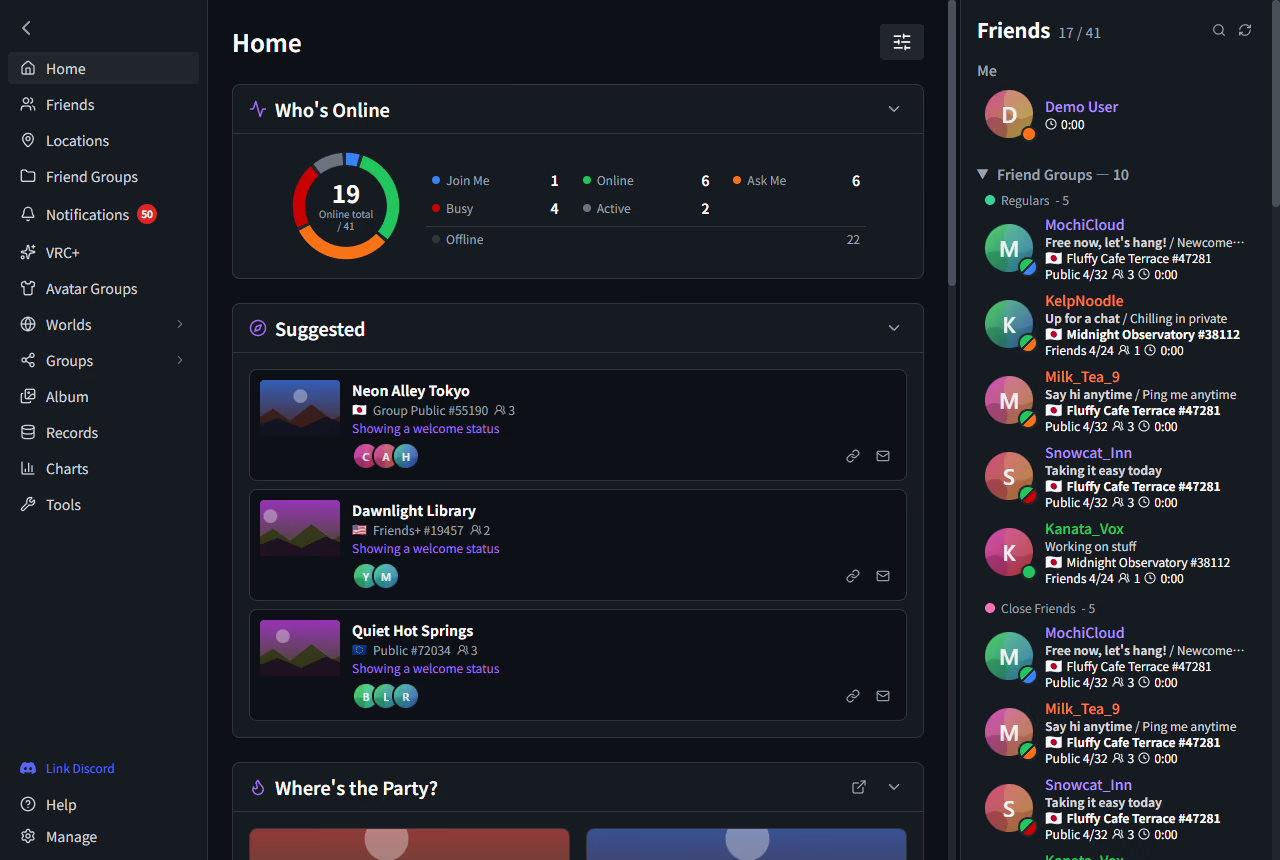
What this screen does
- Rearrange the widgets so the ones you check most sit on top
- Who's online and where they are keeps refreshing while the window stays open
- World names and thumbnails come along with it
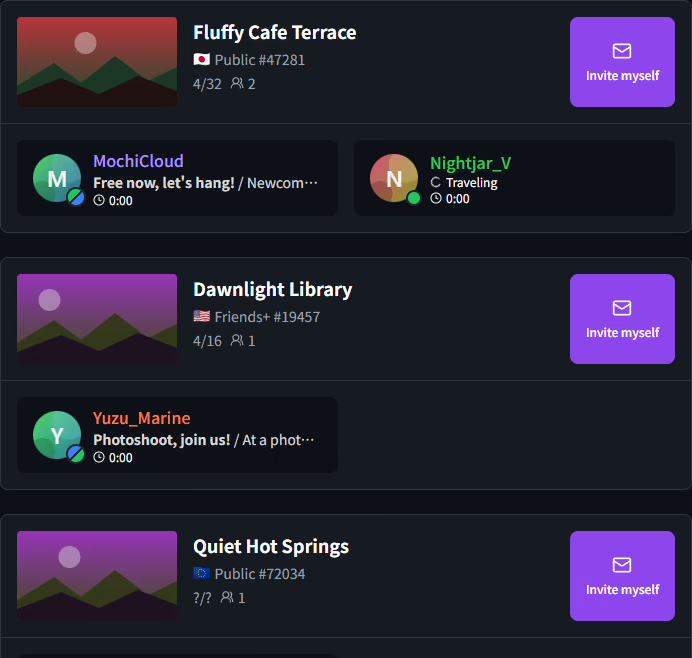
Which world everyone ended up in
Friends are grouped by the world they're in, with a count on each one. Deciding where to head next takes a glance instead of a scroll.
- Search
- One search box covers users, worlds and VRChat groups.
- Mutual friends
- Open a friend's details to see the people you and they both have as friends.
- Pinning
- Keep the friends you check often at the top so you don't have to look for them.
Keep the people you play with together Friend groups
The VRChat friend list is one long column. In VRCPersona you can split it the way you actually think about it — the people you always play with, the ones you met at an event, and so on.
- Server groups
- Stored on the server, visible only to the members of that group. Per-group status, below, needs this kind of group.
- Local groups
- Kept on this PC only. Nothing goes to the server or to the other person, and there is no cap on members.
- A “group” here is VRCPersona's own way of sorting friends. It is not the same thing as a VRChat group.
Choose who sees where you are Group status and instance sharing
VRChat gives every friend the same status. VRCPersona adds a separate status per friend group, so your close circle can see green while everyone else still sees orange.
VRChat status
Whatever you pick reaches every friend the same way. There's no way to tell just your close circle to come over.
VRCPersona group status
Every group can hold a different color at the same time. Blue and green groups also get your location.
Check how it looks to them before you save
Your friend list shows the VRChat status and the VRCPersona status side by side. The settings screen has a preview, so you can see the result before saving.
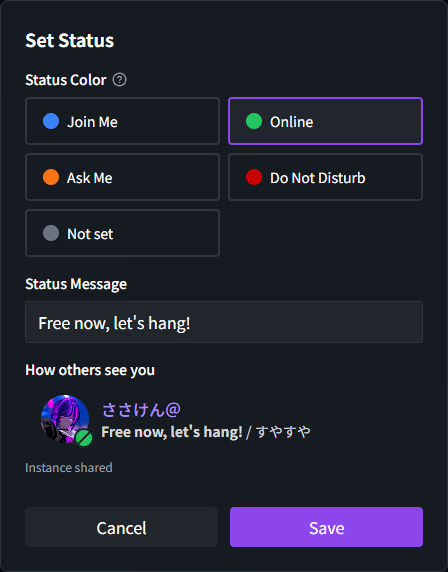
- Instance sharing
- Only blue and green groups get your location. On orange and red, VRCPersona shares nothing.
- Automatic invite requests
- Invite requests from a blue group or a local group can be accepted for you.
More on how friend groups work
- The colors and messages you set here belong to VRCPersona. Your status inside VRChat itself stays exactly as it was.
How far you get without linking anything
1 · Nothing linked Just sign in to VRChat
Friend list, locations, alerts, local groups, records, charts, album and the yearly recap. All of that works with nothing connected.
2 · Link Discord You can activate your license
A license you bought attaches to your account, and the caps on server friend groups and their members come off.
Discord is used for sharing friend groups across several PCs, and it is what holds your license to your account. Without it, the basics — friend list, alerts, local groups — are still free to use.
3 · Link VRChat Now you can share a status
Server groups become available, along with a status per group and instance sharing. It takes a few minutes from the settings screen.
While it verifies you, the Pronouns field on your VRChat account is briefly replaced with a confirmation code. It goes back to what it was on its own within a few seconds to a minute — there is nothing to change by hand.
You don't have to watch the screen Alerts, calendar and VRChat notifications
A friend came online, moved to another world, changed status. You decide which of those you want and where each one shows up, group by group. No need to keep watching the window.
- Windows Shows in the bottom-right corner of the screen.
- Discord Goes to whichever channel your webhook points at.
- XSOverlay For when you're in VR. There is a setting to mute Windows notifications while XSOverlay is running, so the same alert does not arrive twice — it starts off, and you turn it on.
Which alerts, and from which group
For each kind of alert you choose whether it goes to Windows, Discord or XSOverlay. Turning them on and off per group means you can let one group ring and leave the rest quiet.
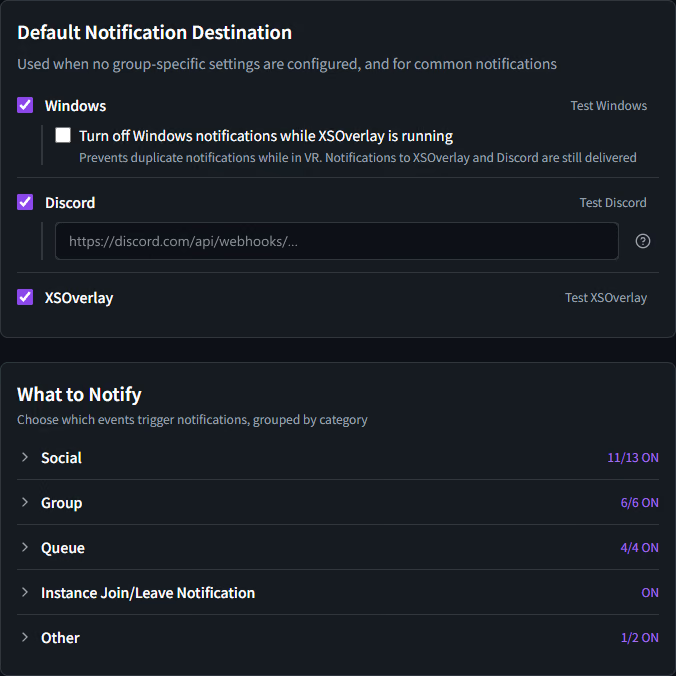
- Discord webhooks
- You pick the webhook each alert goes to, so different kinds can land in different channels.
- Event calendar
- VRChat group events laid out by month, week, day or as a list.
- VRChat notifications
- Invites and friend requests from VRChat can be read and answered inside the app.
- Group activity
- The instances where people have gathered, across the VRChat groups you belong to.
- Head counts on move alerts, alone alerts, instance count changes and avatar changes License
- These four come with the license. Every other alert works on the free version.
- Note: the “groups” in the calendar and in group activity are VRChat's own groups.
Without taking the headset off License VR overlay and SteamVR dashboard
While you're in VRChat you can keep your friends at the edge of your view, and work with the app there instead of going back to the window.
On your wrist
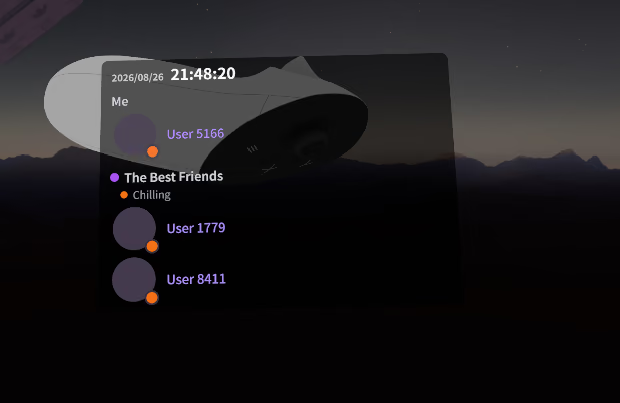
Visible only when you raise your arm.
In your view
Follows where your head turns.
In the room
Stays where you put it.
- Keep your friend groups up while you play
- Add a clock, or change the colors to suit the world you're in
- The SteamVR dashboard takes laser pointer clicks and scrolling
- VR overlay
- Keep your friend groups up in VR. You choose the position and size, whether a clock shows, and the colors.
- SteamVR dashboard
- Puts the app window itself into VR, where you can click and scroll it with the laser pointer.
- SteamVR has to be running for this. On a standalone Quest, or anywhere else without SteamVR, it isn't available.
Look back Records, where you crossed paths, charts and the yearly recap
Turn records on and when, which world, and who was there with you stays on this PC. It's there for looking back on later.
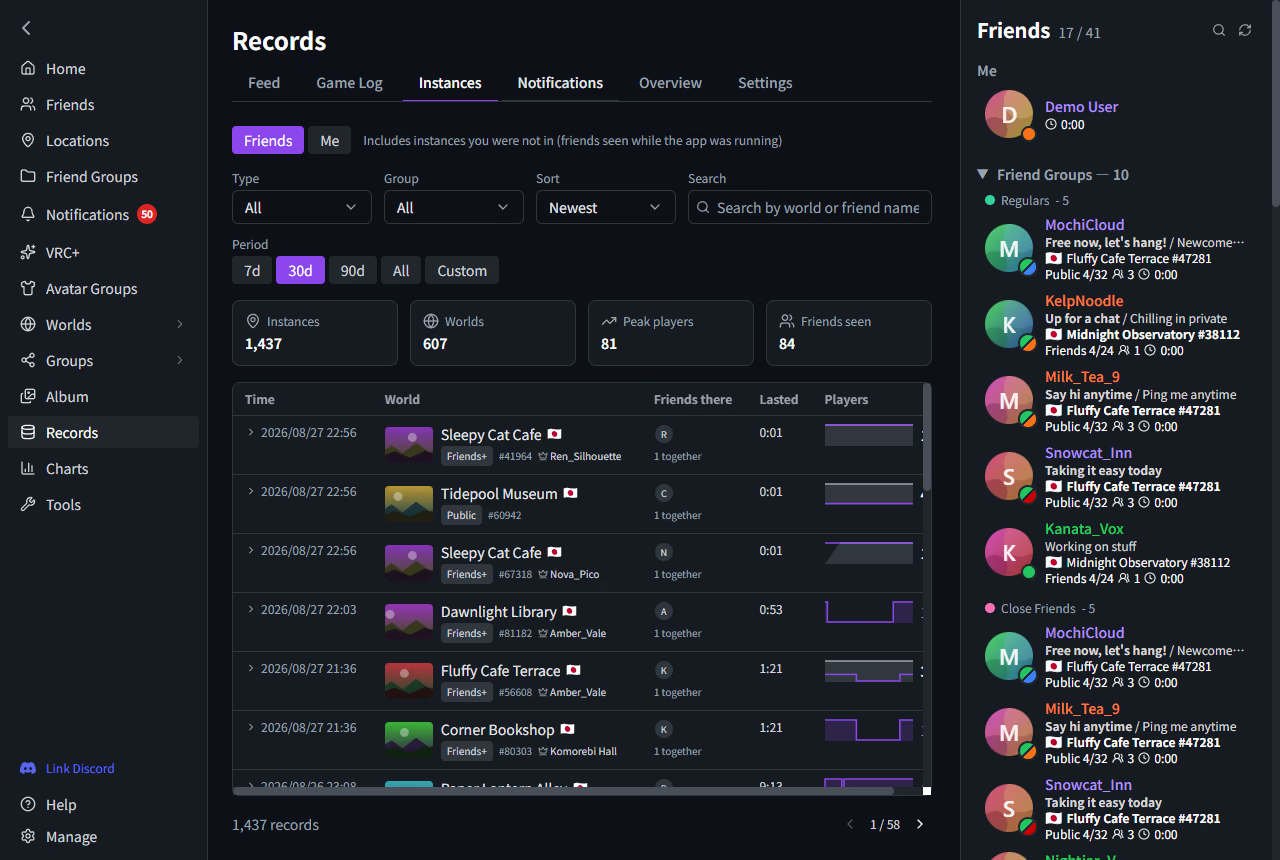
What this screen does
- Game log, feed and instance history sit on one screen
- Walk back through the worlds you visited and who was there, by date
- Records brought over from VRCX land on the same screen
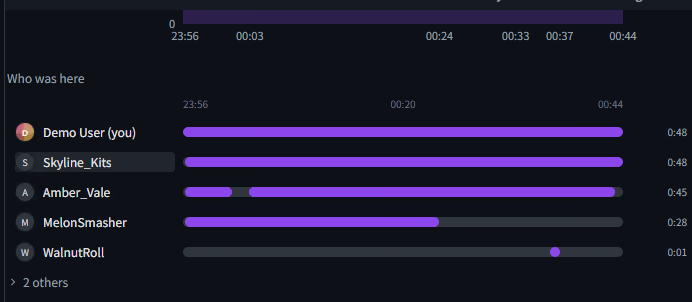
How much of that time you actually overlapped
The head count of the instance and the stretch each person was there for line up as bars, one per person. Where the two of you were in the same place shows up directly. In the app this is called “Footprints”.
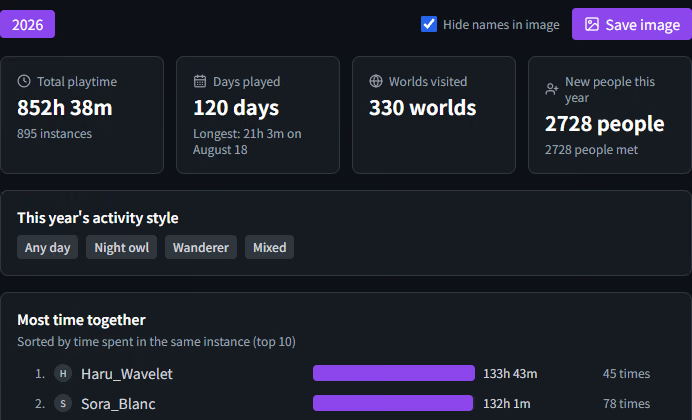
A year on a single page
The worlds you went to, the hours you spent together and the faces you kept running into, all on one page. When you export it as an image, names come hidden by default.
How you actually spent the year
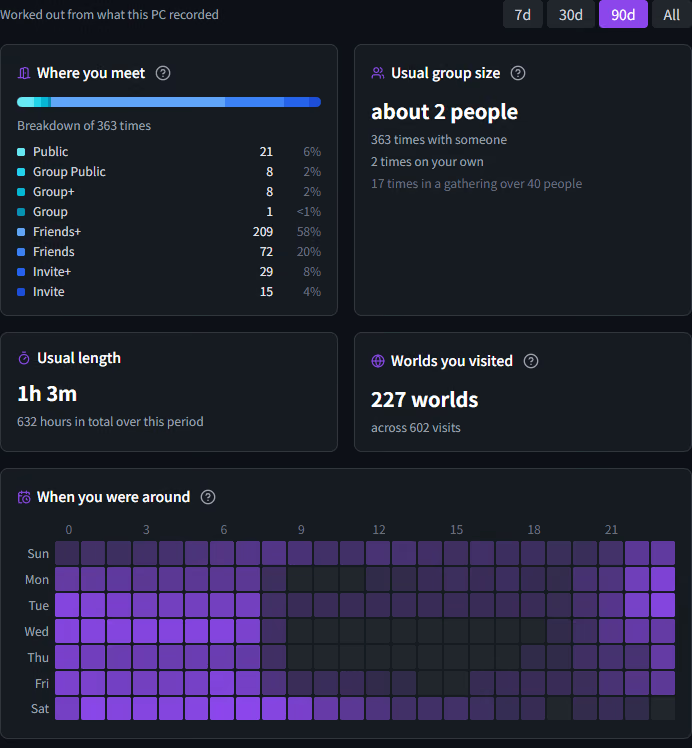
The kinds of instances you meet in, how many people are usually around, how long a visit runs, and which days and hours you spent — all worked out from the times you were there together. It is for your own eyes, not for showing anyone.
- Your history together
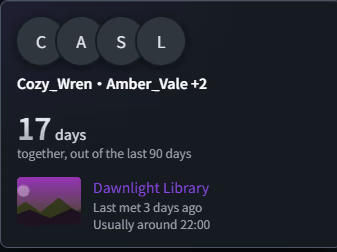
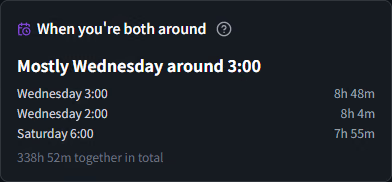
- One page per friend: the hours you've spent together and the first day you were in the same place. “When you're both around” lives here too.
- Charts
- Playtime, the worlds you went back to, and who you spent the most hours with, over whichever period you pick.
Works alongside VRCX. Records you already have in VRCX can be brought over.
- Where it lives
- These numbers are worked out on this PC and nowhere else.
- When you share
- When you export an image, names are hidden by default.
- What it covers
- Only the time after you turned records on. The hours the app wasn't running aren't in there.
Keep your worlds and avatars in order World groups, avatars, VRC+, prints and the album
Note: a “group” here is VRCPersona's own way of sorting things. It is not the same thing as a VRChat group.
Your VRChat favorites and app-only local slots sit on the same screen. The photos you took in VRChat are here too, by month and by world.
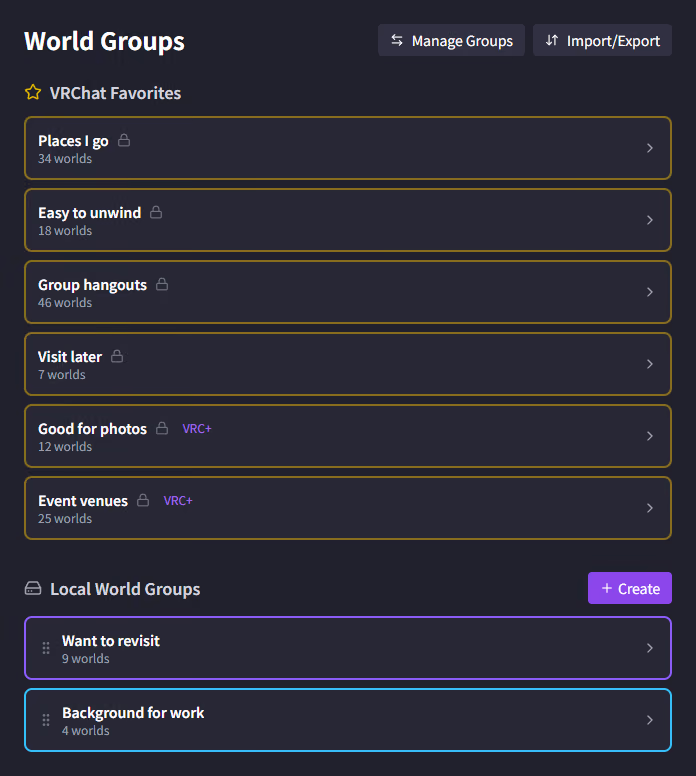
Sort your worlds into groups
VRChat favorites (including the extra VRC+ slots) and app-only local groups share one screen. Add in bulk, or export a group and take it with you. Popular, trending, new and spotlight are all browsable from here.
- Avatar groups
- Favorite and local avatars side by side, with a change straight from the list.
- VRC+ content
- Gallery, icons, emoji, stickers, prints and inventory, handled from the app.
- Print auto-save
- Prints and stickers you took get read out of the log and saved as images. Framed prints are cropped for you.
- Album
- The photos you took in VRChat, by month and by world. Open one and you'll see who was in the same place and which instance it was, taken from your own records (only for photos from a period when records were on).
- Tidying prints and the gallery
- Set how many to keep and the oldest ones clear out on their own. Lock the ones you want to stay.
- Saving prints automatically needs --enable-sdk-log-levels added to VRChat's launch options. Without it, nothing gets saved.
- VRC+ content needs a VRC+ subscription on the VRChat side (VRChat's own monthly plan). That is separate from the ¥700 VRCPersona license.
- Editing tags, capacity and public/private on avatars and worlds really does change those settings on VRChat.
Make it fit your setup Themes, outside connections and sign-in
How it looks, and how it connects to the rest of your setup, both bend to the way you work.
- Themes
- Pick the accent color and the background that go together.
- HTTP integration License
- Other tools on your PC can read what the app knows.
- Discord Rich Presence
- Show the world you're in on your Discord status. It starts off, and you choose how much of it appears.
- Sign-in and updates
- VRChat's two-factor sign-in is supported. The app tells you when a new version is out.
- Japanese and English
- Switch the app between Japanese and English whenever you like.
What the license actually adds
Most of the app stays free. A license (¥700, one-time) adds these four things and lifts the limits.
- VR overlay
- SteamVR dashboard
- HTTP integration (for connecting other tools)
- A few alerts (head counts on move alerts, alone alerts, instance count changes, avatar changes)
- No cap on server friend groups or their member counts
It isn't a subscription. Buy it once and it stays yours.
After buying, type the order number from your BOOTH purchase history into the app's settings screen (no separate license key arrives by mail). See the steps in the FAQ
Windows 10/11 (64-bit). The free download and the license both live on the same BOOTH product page.
Read the FAQ See how friend groups work
Almost everything on this page works without paying. The license is there to lift the limits, and it also keeps the development going.